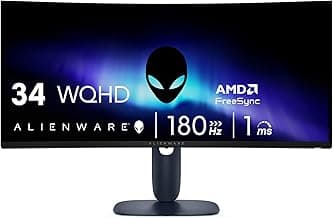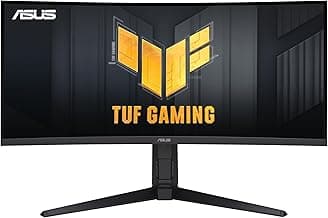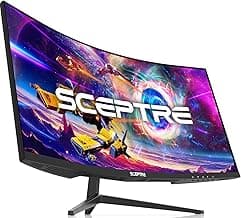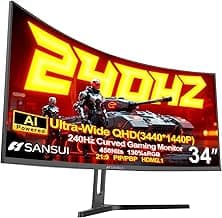

Buying Guide: Best Ultrawide Monitors for Gaming
Many gamers hesitate when considering ultrawide monitors, worried about compatibility issues or whether the extra screen real estate truly pays off in fast-paced play. In reality, these displays can transform your setup if you match them to your needs, reducing common frustrations like input lag or mismatched aspect ratios.
Screen Size and Aspect Ratio
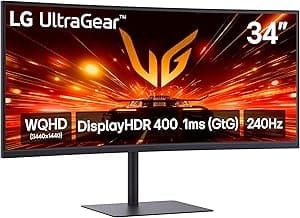
Ultrawide monitors typically come in 34-inch to 49-inch sizes with a 21:9 or 32:9 aspect ratio, offering more horizontal space for immersive gaming without turning your head constantly.
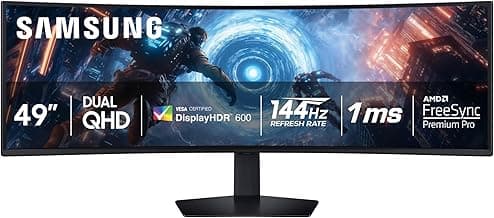
If you have limited desk space, opt for a 34-inch 21:9 model to avoid overwhelming your setup. For multi-monitor replacements or sim racing, a larger 49-inch 32:9 works well, but ensure your GPU can handle the resolution.
Resolution and Sharpness
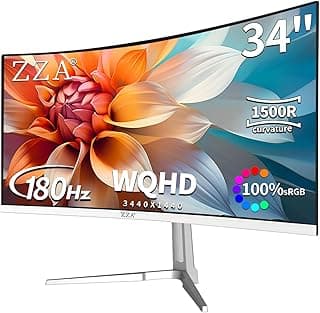
Higher resolutions like 3440x1440 (WQHD) or 5120x1440 (DQHD) deliver crisp details in games, making distant enemies visible and textures pop without taxing older hardware excessively.
Choose 3440x1440 if your system runs mid-range graphics cards, as it balances visuals and performance. Avoid dropping below this for gaming, since lower resolutions can make ultrawides feel stretched and less engaging.
Refresh Rate and Response Time
A 144Hz to 240Hz refresh rate paired with 1ms response time minimizes motion blur and screen tearing, crucial for competitive titles where split-second reactions matter.
- If you play fast FPS games, prioritize 175Hz+ with adaptive sync support.
- For single-player adventures, 144Hz often suffices without overkill costs.
Always verify adaptive sync compatibility (like FreeSync or G-Sync) to match your GPU and eliminate stuttering.
Panel Type and Color Performance
IPS panels provide wide viewing angles and accurate colors, ideal for vibrant worlds in RPGs, while VA options boost contrast for darker scenes in horror games.
Select IPS if color accuracy matters in your games or if you multitask with creative work. Go for VA if deep blacks are key, but check for potential ghosting in quick movements.
Adaptive Sync Technologies
Features like FreeSync or G-Sync synchronize your monitor's refresh rate with your GPU's frame output, preventing tearing and lag during variable frame rates common in demanding games.
If your graphics card supports it, enable this for smoother gameplay. Most modern setups benefit, especially at high resolutions where frame drops occur.
Connectivity and Ergonomics
Look for DisplayPort 1.4 or HDMI 2.1 for full bandwidth at high refresh rates, plus USB hubs for peripherals to keep your desk clean.
- Adjustable stands with height, tilt, and swivel reduce strain during long sessions.
- If wall-mounting, confirm VESA compatibility upfront.
These options make setup straightforward, avoiding cable clutter or discomfort.
Budget and Long-Term Value
Expect to spend $400–$1500 depending on specs; mid-range picks around $600–$900 often deliver the best balance for gaming without unnecessary extras.
If you're upgrading from a standard monitor, factor in GPU demands—start modest if your rig isn't top-tier. Higher investments pay off in durability and future-proofing for evolving titles.
Best Ultrawide Monitors for Gaming FAQ
What are the best ultrawide monitors for gaming on a budget?
If you're watching your wallet, look for ultrawide gaming monitors around $400 to $700 that still deliver smooth 100Hz+ refresh rates and solid color accuracy for immersive play. These budget picks often cut corners on extras like built-in speakers but excel in core performance for titles like racing sims or open-world adventures. In most cases, they offer great value if your setup doesn't demand top-tier HDR.
Are ultrawide monitors safe for eyes during long gaming sessions?
Ultrawide monitors with flicker-free tech and low blue light filters are generally safe for extended gaming, reducing strain during marathon sessions. Opt for models certified for eye comfort, and pair them with the 20-20-20 rule—every 20 minutes, look 20 feet away for 20 seconds—to keep fatigue at bay. If you game in dim rooms, adjustable brightness helps prevent glare-related issues.
How do I install an ultrawide monitor for optimal gaming setup?
Installation is straightforward: most ultrawide gaming monitors come with VESA mount compatibility for arms or stands, so secure it at eye level about 24-30 inches away to match the curve if present. Connect via DisplayPort for the best refresh rates, update your GPU drivers, and tweak settings in your game's FOV for that wide panoramic view. If desk space is tight, a single cable solution keeps things tidy.
What makes ultrawide monitors efficient for gaming performance?
These monitors shine in efficiency by packing 21:9 or 32:9 aspect ratios into high refresh rates without tanking your frame rates on mid-range GPUs, especially in single-player games. They often include adaptive sync to minimize tearing, making gameplay smoother than traditional 16:9 setups. Power draw stays reasonable under 100W for most models, so they won't spike your electricity bill during all-night sessions.
How do ultrawide gaming monitors compare to standard widescreen options?
Ultrawide monitors provide a wider field of view for more immersive gaming, like spotting enemies in FPS titles, compared to standard 16:9 screens that can feel cramped. They cost more upfront but deliver better multitasking for streamers, though some games need mods for full compatibility. If portability matters, stick to 16:9; otherwise, ultrawides win for cinematic experiences.
Conclusion
Choosing the best ultrawide monitors for gaming comes down to balancing refresh rates, panel types, and immersive field of view for smooth, captivating gameplay. High response times and adaptive sync tech stand out as key factors for minimizing lag and tearing.
You now have a clear sense of what truly enhances your setup. Weigh your priorities—be it resolution or curvature—and pick the model that aligns with your gaming style. Your ideal display awaits, ready to elevate every session.